
Why the peak week breaks differently
During Black Week, the homepage is rarely the first thing to break. It usually sits in the page cache and answers fast with 200 OK. The failures happen deeper in the purchase journey, where nothing is cached and the most third-party services are involved. A plain uptime check sees none of it.
Typical failures during a campaign week:
- The payment step doesn't load. The payment provider's script or iframe never arrives, or a JavaScript error blocks the form. The page still returns 200.
- Shipping options take too long. Checkout waits on a carrier API that is slow under the same peak.
- Uncached pages slow down. Cart and checkout render for every visitor. They get sluggish under load while cached pages look fine.
- Something changed last week. A new campaign plugin, a price rule or a theme tweak before the sale.
- Background queues grow. Order confirmations, ERP exports and product feeds sit in Action Scheduler and can't keep up.
So asking whether the site is up isn't enough. The question is: can a customer buy right now, and how long does it take? A synthetic flow answers that. We cover the difference between the two kinds of check in Uptime monitoring vs synthetic monitoring. This article is about using flows before and during the peak week.
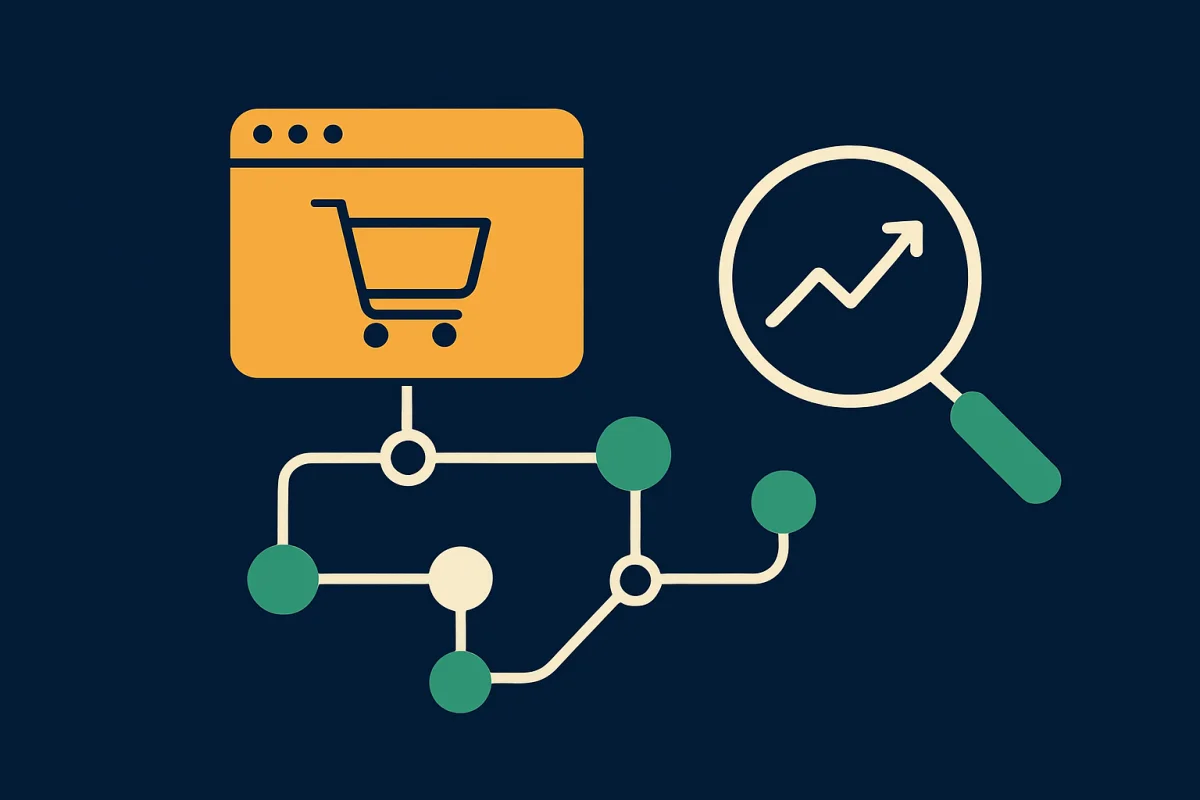
Map the purchase journey before you build a single monitor
Write down every step a customer takes and what must be true at each step. That becomes your test specification. A flow that just clicks onward without checking anything will miss failures.
- Homepage. A 200 response and a keyword that only appears once the page has fully rendered, such as footer text. Also check that words like "maintenance" are not present.
- Category or search. At least one product is listed.
- Product page. A price is visible and the "Add to cart" button exists.
- Add to cart. The cart count changes.
- Cart. A total is shown.
- Checkout. Form fields render and shipping options load.
- Payment step. The payment provider's widget or iframe is on the page. Stop here.
Why stop before payment? So the flow doesn't create real orders, reduce stock, or trigger the payment provider's fraud controls with repeated test purchases. What you need to know is that a customer can pay, not that a payment goes through.
Test product and test data
- Use a dedicated test product. Set catalogue visibility to hidden, give it plenty of stock, and exclude it from product feeds and stock sync. It is still reachable by direct URL.
- Consider a second flow with a real campaign product that only goes as far as the cart. That also tests price rules and discounts, which are often what changed before the sale.
- Account for sessions. Every run creates a cart session. WooCommerce stores these in
wp_woocommerce_sessions, and by default they expire after 48 hours. Check the size withSELECT COUNT(*) FROM wp_woocommerce_sessions; - Block checkout creates draft orders. When the flow reaches block-based checkout, orders with status
checkout-draftare created. A daily scheduled action normally cleans them up. If their number keeps growing, Action Scheduler has probably stalled. - Filter test traffic out of analytics and conversion tracking. Otherwise your campaign numbers get noisy.
Set a baseline three weeks out
A threshold without a baseline is a guess. Start the flows at least two to three weeks before the peak week. That way you see normal variation, including nightly backups, cron windows and ordinary traffic peaks.
Record the time per step, not just the total. The slow step tells you where the problem is. Add a manual measurement that breaks the response time down:
curl -o /dev/null -s -w 'dns:%{time_namelookup} connect:%{time_connect} tls:%{time_appconnect} ttfb:%{time_starttransfer} total:%{time_total}
' https://shop.example.com/checkout/
Also check that cart and checkout really aren't cached, and that product pages are:
curl -sI https://shop.example.com/checkout/ | grep -iE 'cache|age'
Reasonable starting thresholds, to adjust against your own baseline:
- Slow: a step takes roughly twice its normal median, across several consecutive runs.
- Down: a step fails, meaning an expected element or keyword is missing.
Requiring several consecutive runs matters. One slow run is normal. A trend is not.
The monitor set for the peak week
The flow is the backbone, but it needs support. Each monitor below catches a class of failure the flow either misses or spots too late.
- HTTP with keyword on the homepage and one product page. Cheap, runs every minute, and catches full outages and empty pages served from cache.
- Synthetic flow through the purchase journey as listed above.
- API/JSON check against the WooCommerce Store API, for example
/wp-json/wc/store/v1/products?per_page=1. Expect a JSON array. Why: the block cart and block checkout talk to this API. A fatal PHP error in the REST layer can leave pages visible while checkout is dead. - Performance check on the checkout URL, so you see response time between flow runs as well.
- Heartbeat for jobs that must run: order export, product feeds, stock sync. Ping only after the job succeeds:
*/15 * * * * /usr/local/bin/export-orders.sh && curl -fsS -m 10 "$HEARTBEAT_URL" >/dev/null - The Action Scheduler queue. Check past-due actions:
SELECT COUNT(*) FROM wp_actionscheduler_actions WHERE status = 'pending' AND scheduled_date_gmt < UTC_TIMESTAMP();A number that grows over an hour is a warning. - SSL and domain. Make sure nothing expires during the week or the two weeks after:
echo | openssl s_client -connect shop.example.com:443 -servername shop.example.com 2>/dev/null | openssl x509 -noout -enddateandwhois example.com | grep -i expir. - DNS. Save the current records with
dig +noall +answer shop.example.com Aand make no DNS changes during the week.
Freeze changes, but log them anyway
It is commonly understood that many incidents follow a change. During the peak week you want as few suspects as possible. Turn off automatic updates for the period:
wp plugin auto-updates status --allto see where you stand.wp plugin auto-updates disable --allandwp theme auto-updates disable --all.define( 'WP_AUTO_UPDATE_CORE', false );inwp-config.phpif you also want to stop core updates.
The trade-off: security releases can land mid-week. Decide in advance who reviews them and how fast. Write the decision down. How automatic updates show up on the timeline is covered in WordPress auto-updates in the middle of Halloween traffic.
Any change that still goes in, like a price adjustment or a new banner script, should be logged with a time and who made it. That log is the first thing you check when the flow alerts.
Alert routing for the week
Not every alert is equally urgent. Sort them before the week starts, not in the middle of an incident.
- Down (the flow fails at checkout or payment): SMS and chat to whoever is on call.
- Slow (a step over threshold across several runs): a chat channel, watched during the day.
- Warning (certificate or domain nearing expiry, a growing queue): e-mail.
Write an on-call rota with names and hours from Friday to Monday. Decide who contacts the client, and when. If you run a public status page, agree with the client in advance on what gets published there. For tone, see How to communicate incidents to clients. For keeping noise down, see Alert fatigue.
In Ravnsight, a failed check is confirmed from another location before anyone is alerted. The nodes are in Germany, Finland and Sweden. A network glitch at a single node won't wake anyone. It also means that an alert that does arrive deserves to be taken seriously.
When the flow fails but the site is up
This is the most common situation in a peak week. Work through it in this order:
- Which step? Product page, cart, checkout and payment each point somewhere different.
- All locations or one? Failures from every node point to the site. Failures from one location point to the network or an external service.
- What changed in the hours before? Go through the change log.
- PHP errors?
tail -n 200 wp-content/debug.logifWP_DEBUG_LOGis on, otherwise the server error log. - JavaScript errors? Open checkout in a private browser window and read the console. The payment step often fails client-side.
- External dependencies? Check the payment and shipping providers' status pages.
Ravnsight Detective is a free WordPress plugin. It puts plugin and theme updates, PHP errors, JavaScript errors, slow queries and WooCommerce events on one timeline. With Pro, what the monitor saw goes on that timeline too. You get a likely cause, with both supporting and contradicting evidence, and a confidence level: LOW, MEDIUM or HIGH. Here's an example. The flow fails at checkout at 14:02, and a campaign plugin was updated at 13:55. That shows up as strongly correlated, not as proven. The isolation test disables the suspected plugin in the administrator's own session only, so visitors are never affected. Only if the failure disappears and comes back that way does it become CONFIRMED. Ravnsight doesn't fix anything itself. Whether to roll back is your call. See the features page for what each plan includes.
Afterwards: keep the evidence
- Produce an SLA report for the week and send it to the client. It shows what actually happened, not what someone remembers.
- Compare step timings against the baseline. Which step slowed down most under load? That's your next area to improve.
- Keep the flows running. The last Christmas shipping date is only a few weeks away.
- Turn automatic updates back on in a controlled way, one at a time, and check that the flow stays green after each.
A dated checklist
- T−21 days: Map the purchase journey. Create the test product. Start flows, the API check and heartbeats.
- T−14: Read the per-step baseline. Set thresholds. Check SSL and domain dates.
- T−7: Last planned changes. Run the flow manually after each one.
- T−2: Change freeze. Automatic updates off. On-call rota and alert routes tested with a test alert.
- During the week: Watch the queue, step timings and the change log. Follow the order above when an alert fires.
- T+3: SLA report, comparison against the baseline, and a controlled restart of updates.
None of this stops things from breaking. It means you're the first to know, you know where it broke, and you can show why.