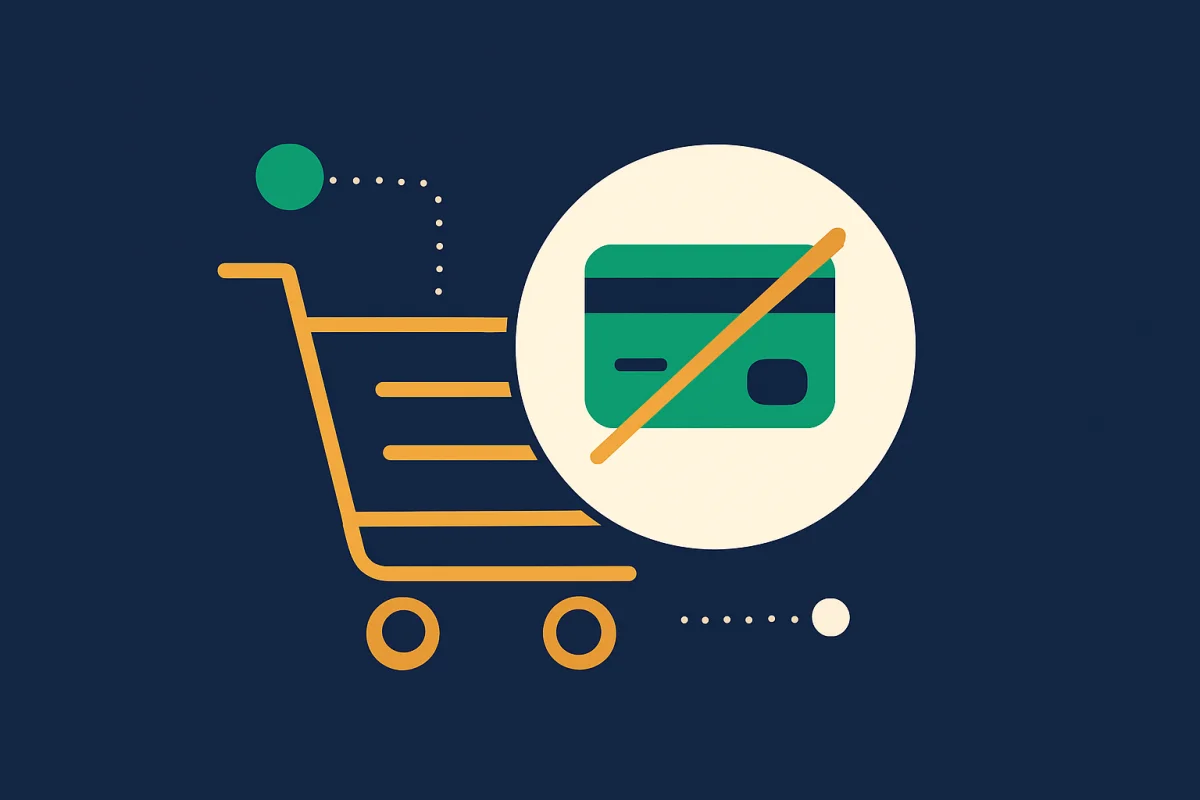

Your homepage returns 200 OK, your uptime monitor is green, and yet customers are emailing you: they can't complete their purchase. This is one of the most expensive situations a WooCommerce store can face, because the problem is invisible to most tools. Below we cover why a working homepage does not mean a working checkout, and how to troubleshoot it step by step.
Why a 200 OK on the homepage tells you nothing about checkout
A standard uptime check fetches a single URL, usually the homepage, and confirms the server replies with HTTP 200. But a purchase is not a page, it is a flow: product page, add to cart, cart, checkout, and finally payment through an external gateway. Each step runs different code, different plugins and sometimes external services. The homepage may be statically cached and load flawlessly while the checkout, which is never cached, crashes because of a JavaScript error or a broken API call to the payment provider.
Step 1: Reproduce the entire purchase flow manually
Always start by doing exactly what the customer does. Open the store in an incognito window so login state and cache don't affect you:
- Open a product page and add the product to the cart.
- Go to the cart and confirm the total is correct.
- Proceed to checkout and fill in the details.
- Select a payment method and actually attempt a payment, ideally in test mode.
Note exactly where it breaks. Does it fail already at "add to cart", or only when you click "pay"? That narrows the fault dramatically.
Step 2: Check the payment gateway and recent updates
Payment is the most common failure point because it depends on a third party. Check your payment provider's dashboard (Stripe, Klarna, Swish, PayPal) for failed or abandoned transactions. Also look at the timeline: a checkout error that started right after a plugin or gateway update is a strong lead. WooCommerce, the payment plugin or a theme may have updated automatically overnight. Roll back the most recent change on a staging site and see if the error disappears.
Step 3: Read WooCommerce status and logs
Go to WooCommerce > Status and look for red warnings, missing tables or outdated templates. Under the Logs tab you'll find error messages from gateways, often with the exact cause, such as a rejected API key or a timeout to the payment provider. Also enable WordPress debug logging (WP_DEBUG_LOG) and inspect wp-content/debug.log for PHP errors triggered specifically at checkout.
Step 4: Check template overrides
Many themes and plugins override WooCommerce checkout templates by placing their own files in theme/woocommerce/. When WooCommerce updates, these copies can go stale and stop rendering important fields or buttons. WooCommerce Status shows a list of templates that are "out of date". Update or temporarily remove the override and test again.
Step 5: Open the browser console at checkout
An empty payment field or a button that does nothing is almost always caused by a JavaScript error. Open the developer tools (F12), go to the Console tab and reload the checkout. Red errors here, often a clash between two plugins or a script that fails to load, point straight at the culprit. Also check the Network tab for calls to the gateway returning status code 400 or 500.
Step 6: Rule out cache and third-party scripts
Aggressive caching is a silent culprit at checkout. If a cache plugin or a CDN accidentally starts caching the checkout or cart, visitors can be served an old, incorrect page with invalid nonces, which makes WooCommerce reject the action. Confirm that the checkout, cart and my-account pages are excluded from all page caching. Also try temporarily disabling third-party scripts such as chat widgets, tracking pixels and A/B testing tools, since they often load heavy JavaScript precisely on the checkout and can clash with the gateway's scripts.
Step 7: Check nonces and session handling
WooCommerce uses nonces to protect against forged requests. If a visitor's session expires, or caching serves a stale nonce, the checkout can respond with a silent error or reload without proceeding. This is especially common when the page has been open for a while before the customer clicks pay. In the debug log it often shows up as a failed AJAX request to ?wc-ajax=checkout with status code 403. If you see this pattern, caching or session length is almost always the cause.
Turn the walk-through into a check that runs every few minutes
Step 1 is the right test – it just shouldn’t wait for a customer to complain. A synthetic flow repeats it in a real browser on a schedule. Give every step an assertion that proves it worked, not just that a page loaded:
- Product page: the “Add to cart” button exists and responds.
- Cart: the right product and the correct total are shown.
- Checkout: the form renders and no JavaScript errors are logged.
- Payment: the gateway’s field or button actually loads – the step a plain HTTP check never reaches.
Keep it free of side effects: use the gateway’s test mode or stop before the final confirmation, and give the flow a dedicated test product so it never touches real orders, stock or customer e-mails. Time each step as well – an “add to cart” that creeps from one second to three is a warning before it becomes an outage.
How to stop being surprised by checkout failures
The real problem with checkout failures is that customers discover them before you do. A plain uptime check of the homepage would never have caught any of the above. This is exactly where synthetic monitoring makes the difference.
Ravnsight runs what are called synthetic flows: a real browser walks the entire purchase journey, from product to cart to checkout, just like a customer, and alerts you when a step breaks. Our WooCommerce Detective also catches gateway errors, order problems and failed webhooks directly in the store. A failed check is always confirmed from a second location before an alert is sent, so you avoid false alarms. That way you know the checkout works, not just that the homepage responds.